> ## Documentation Index
> Fetch the complete documentation index at: https://docs.tradesfield.com/llms.txt
> Use this file to discover all available pages before exploring further.
# Compliance
> Compliance Requirements let you control which licences and insurances are required for different types of vendors.
Compliance Requirements allow you to define which licences, insurances, and documents are required for each type of vendor in TradesField.
This ensures every vendor is assessed against the right standards, based on the kind of work they do for your organisation.
## How Compliance Requirements work
Each vendor in TradesField is assigned a **Compliance Type**. This determines which documents they must provide when they submit their details.
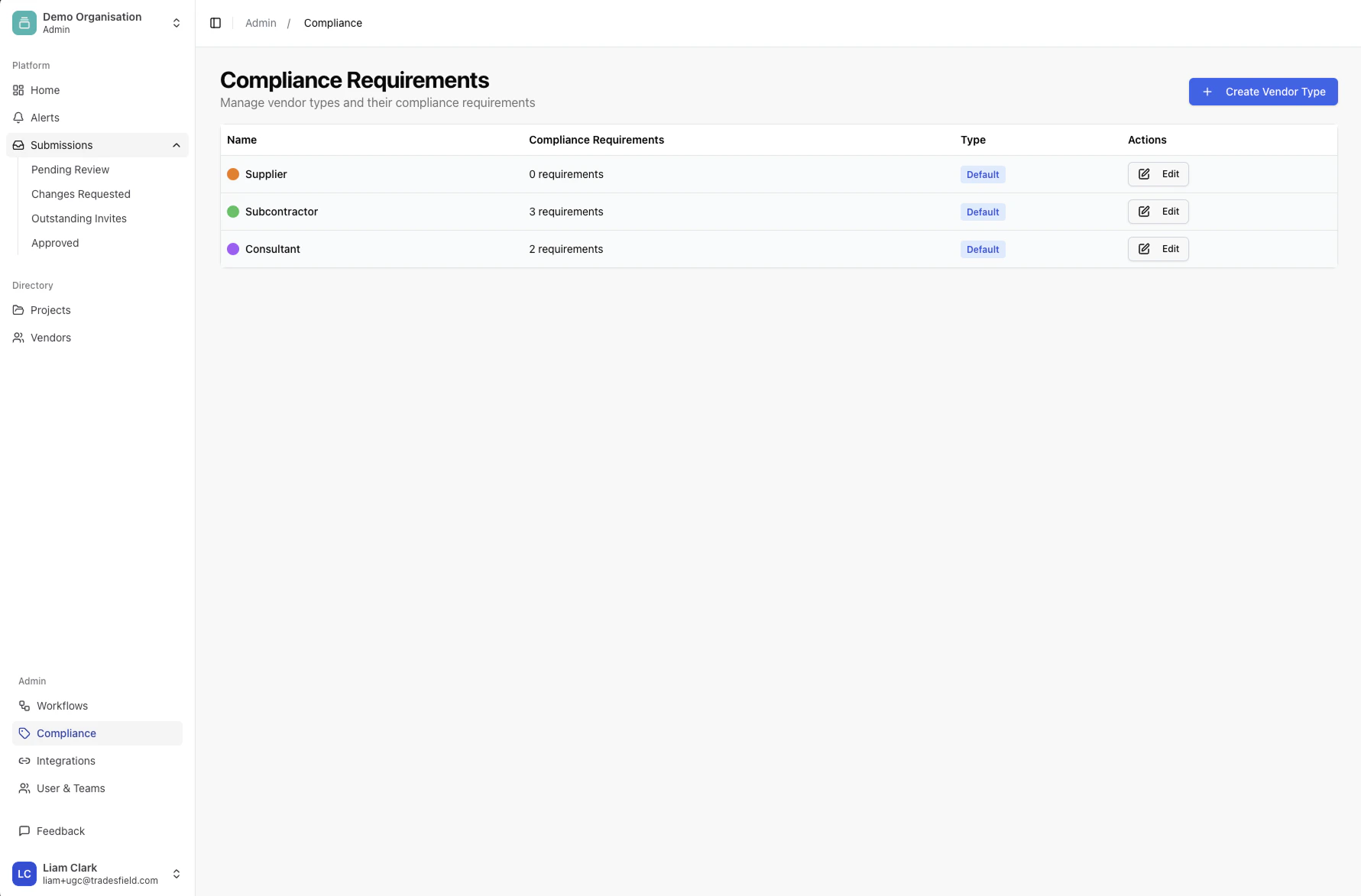
By default, TradesField includes three compliance types:
* **Subcontractor**
* **Supplier**
* **Consultant**
Each type has its own set of required documents.
For example, you may require all **Subcontractors** to provide Public Liability and Professional Indemnity insurance, while a **Supplier** such as Bunnings may not need either.
These rules ensure vendors are only asked for what is relevant to them.
## Where Compliance is managed
Compliance Requirements are managed in **Admin > Compliance**.
From here, you can view and edit:
* Compliance Types
* Required documents and insurances for each type
* Expiry tracking and validation rules
 ## Editing compliance requirements
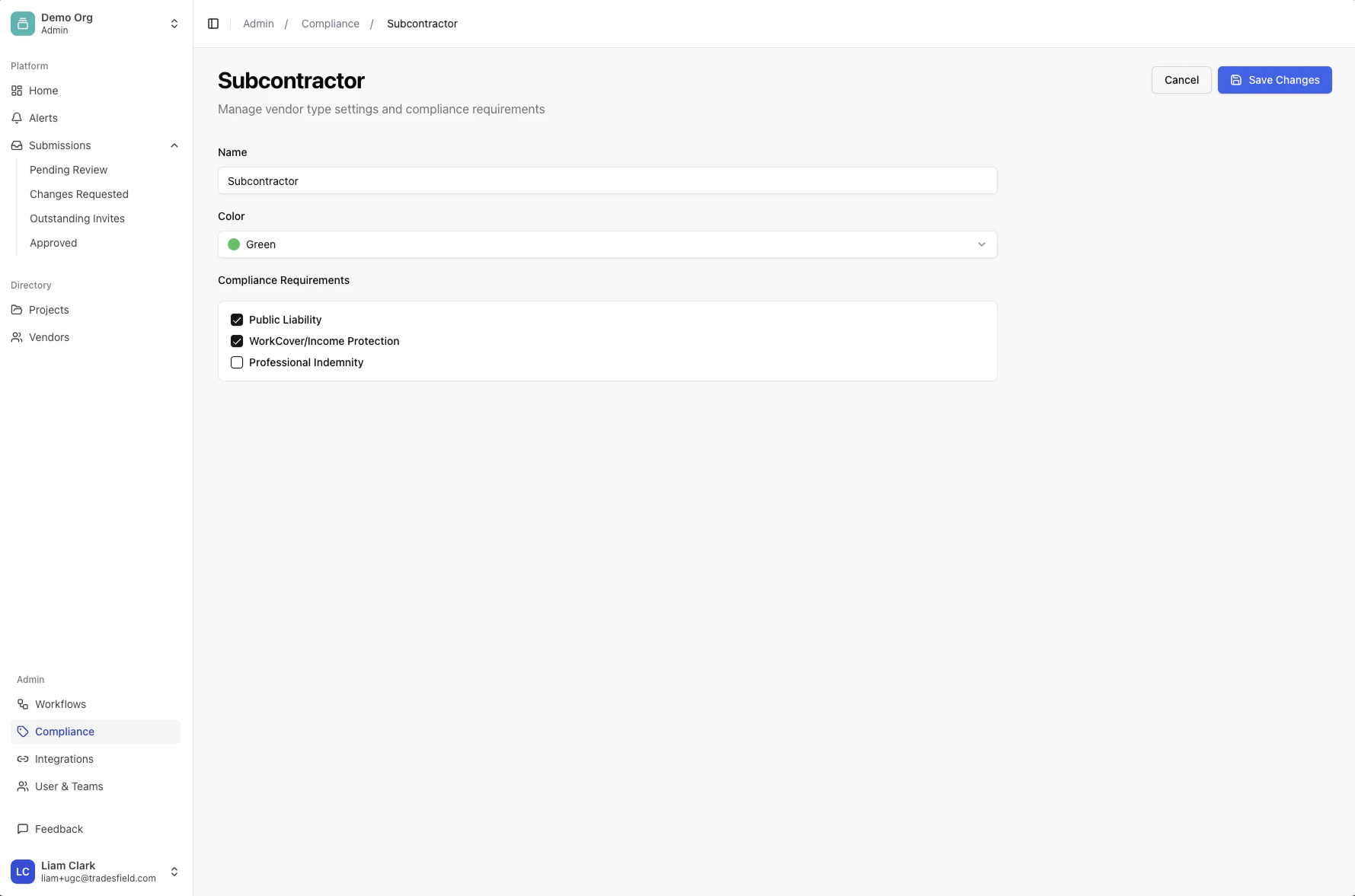
You can customise each Compliance Type to match your internal policies.
For each type, you can:
* Add or remove required documents
* Set which insurances are mandatory
* Control which licences must be supplied
Changes apply immediately to all future vendor invites that use that Compliance Type.
## Editing compliance requirements
You can customise each Compliance Type to match your internal policies.
For each type, you can:
* Add or remove required documents
* Set which insurances are mandatory
* Control which licences must be supplied
Changes apply immediately to all future vendor invites that use that Compliance Type.
 ## How compliance is assigned to vendors
A vendor’s Compliance Type is assigned when you invite them.
When sending an invite, you choose which Compliance Type applies to that vendor. This determines what they are asked to provide in their submission.
If needed, you can also change a vendor’s Compliance Type later:
1. Open the vendor
2. Click the three dots
3. Select **Edit vendor**
4. Update their Compliance Type
This will change which documents are required for that vendor going forward.
## Why this matters
Compliance Types ensure:
* Vendors are not asked for irrelevant documents
* High-risk vendors are held to higher standards
* Your compliance process stays consistent and auditable
This keeps your data clean, reduces back-and-forth with vendors, and helps your team stay confident that the right checks are in place before any work or payments occur.
## How compliance is assigned to vendors
A vendor’s Compliance Type is assigned when you invite them.
When sending an invite, you choose which Compliance Type applies to that vendor. This determines what they are asked to provide in their submission.
If needed, you can also change a vendor’s Compliance Type later:
1. Open the vendor
2. Click the three dots
3. Select **Edit vendor**
4. Update their Compliance Type
This will change which documents are required for that vendor going forward.
## Why this matters
Compliance Types ensure:
* Vendors are not asked for irrelevant documents
* High-risk vendors are held to higher standards
* Your compliance process stays consistent and auditable
This keeps your data clean, reduces back-and-forth with vendors, and helps your team stay confident that the right checks are in place before any work or payments occur.